

Sudoku Solver AI with OpenCV
We will be creating a Sudoku Solver AI using python and Open CV to read a Sudoku puzzle from an image and solving it. There a lot of methods to achieve this goal. Thus in this series, I have compiled the best methods I could find/research along with some hacks/tricks I learned along the way.
This article is a part of the series Sudoku Solver AI with OpenCV.
Part 1: Image Processing
Part 2: Sudoku and Cell Extraction
Part 3: Solving the Sudoku
What is Sudoku?
Sudoku is a logic-based, combinatorial number-placement puzzle with a 9×9 grid with digits so that each column, each row, and each of the nine 3×3 subgrids that compose the grid contain all of the digits from 1 to 9. (Wikipedia).
To learn more about how to solve the same, check out Peter Norvig’s Solving Every Sudoku Puzzle.
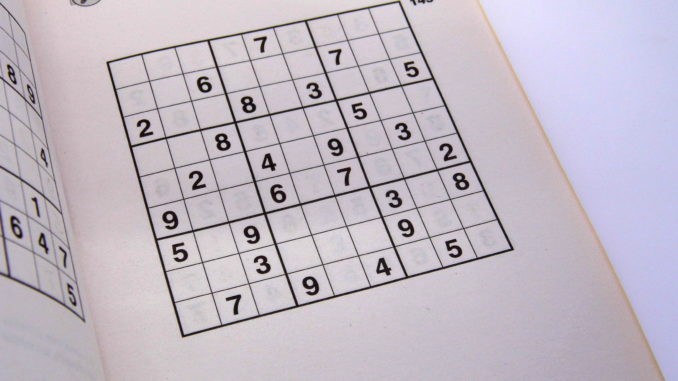
Let us get started…
Steps
I am trying to be as detailed as possible in listing the steps along with there descriptions.
- Import the image
- Pre Processing the Image
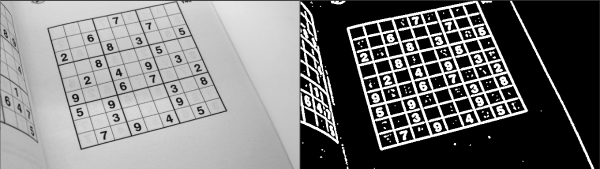
2.1 Gaussian blur: We need to gaussian blur the image to reduce noise in thresholding algorithm
2.2 Thresholding: Segmenting the regions of the image
2.3 Dilating the image: In cases like noise removal, erosion is followed by dilation.

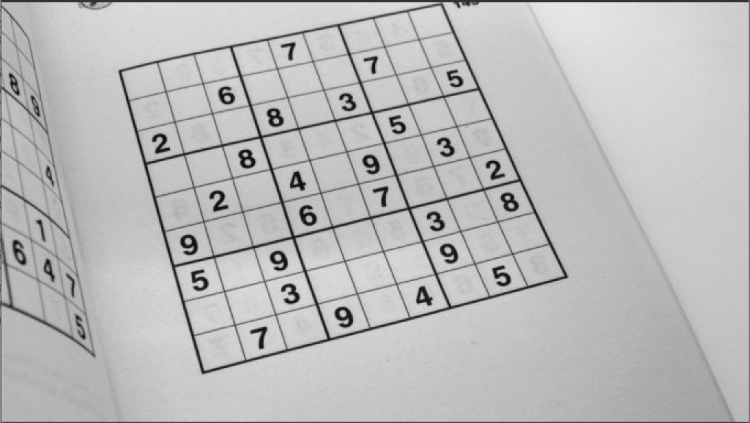
1. Import the image
Firstly, we need to imposrt the image of the Sudoku. We will be using openCV for this.
# a function to read the
def read_img():
    # I wanted the user to have the liberty to choose the image
    print("Enter image name: ")
    image_url = input()
    #image url also conatins the image extension eg. .jpg or .png
    #reading in greayscale
    img = cv2.imread(image_url, img = cv2.imread(image_url, cv2.IMREAD_GRAYSCALE))
2. Pre Processing the Image
2.1 Gaussian blur:
We need to Blur the image using gaussian blur to reduce noise obtained in thresholding algorithm (adaptive thresholding). To know more about what exactly is Gaussian blur, https://datacarpentry.org/image-processing/06-blurring/.
Syntax: GaussianBlur(src, dst, ksize, sigmaX)
- src − input image
- dst − output image
- ksize − A Size object representing the size of the kernel.
- sigmaX − A variable of the type double representing the Gaussian kernel standard deviation in X direction.
# Note that kernel sizes must be positive and odd and the kernel must be square.
proc = cv2.GaussianBlur(img.copy(), (9, 9), 0)
Trending AI Articles:
1. Natural Language Generation:
The Commercial State of the Art in 2020
4. Becoming a Data Scientist, Data Analyst, Financial Analyst and Research Analyst
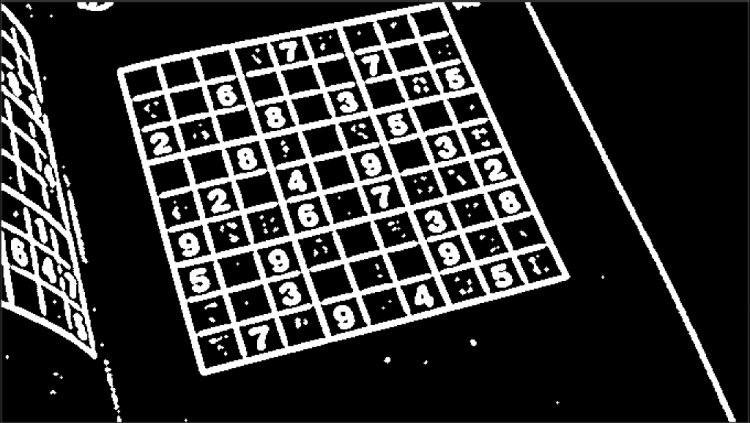
2.2 Thresholding Algorithms
Why is thresholding used in image processing? We need to separate an image into some regions (or their contours), the process is called segmentation. So, one of the ways to segment such regions is called thresholding.
# cv2.adaptiveThreshold(src, maxValue, adaptiveMethod, thresholdType, blockSize, constant(c))
# blockSize – Size of a pixel neighborhood that is used to calculate a threshold value for the pixel: 3, 5, 7, and so on.
# C – Constant subtracted from the mean or weighted mean (see the details below). Normally, it is positive but may be zero or negative as well.
process = cv2.adaptiveThreshold(process, 255, cv2.ADAPTIVE_THRESH_GAUSSIAN_C, cv2.THRESH_BINARY, 11, 2)

2.3 Invert colors and Dilation
In order to successfully extract the grid, we need to invert the colors
process = cv2.bitwise_not(process, process)
We need to use dilation as while using Gaussian Thresholding we reduced noise which in turn lead shrinking of our object. So we need to dilate it.
# np.uint8 will wrap.
# For example, 235+30 = 9.
kernel = np.array([[0., 1., 0.], [1., 1., 1.], [0., 1., 0.]], np.uint8)
process = cv2.dilate(process, kernel)
Next Steps:
Check out Part 2: Sudoku and Cell Extraction to complete your Sudoku Solver AI. Feel free to reach out to me if you have any questions.
Resources:
Solving Every Sudoku Puzzle
Thresholding
Dilation
Other:
1.https://hackernoon.com/sudoku-solver-w-golang-opencv-3-2-3972ed3baae2
2. https://medium.com/@aakashjhawar/sudoku-solver-using-opencv-and-dl-part-1-490f08701179
Don’t forget to give us your ? !



Part 1: Image Processing was originally published in Becoming Human: Artificial Intelligence Magazine on Medium, where people are continuing the conversation by highlighting and responding to this story.
Via https://becominghuman.ai/image-processing-sudokuai-opencv-45380715a629?source=rss—-5e5bef33608a—4
source https://365datascience.weebly.com/the-best-data-science-blog-2020/part-1-image-processing
 365 Data Science